Airgap AISec Platform Console
How do I log in?
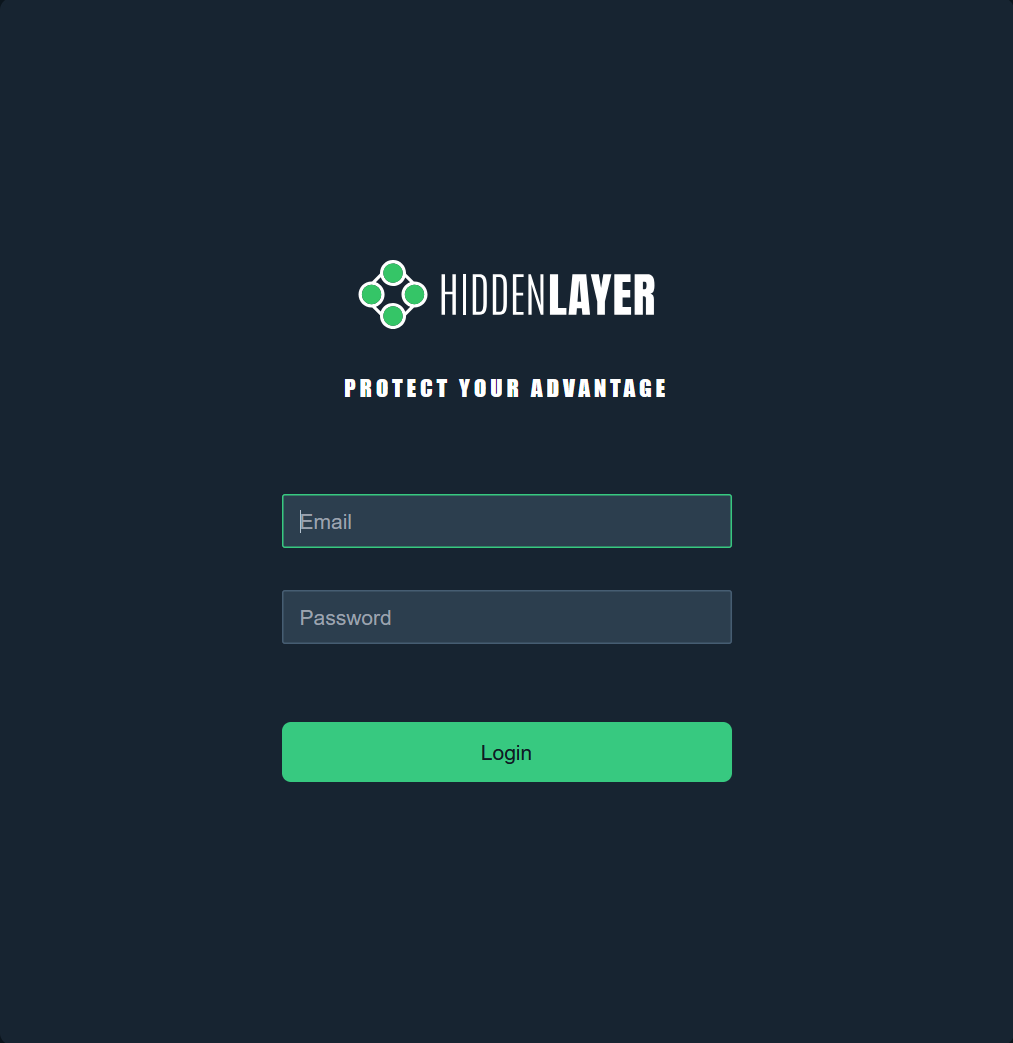
The hostname, user name, and password specified in the AirGapped AISec Platform installation steps will be used to login to the Console via a web browser.
-
The user name specified will have administrator level privileges.
To Log In
- Use the URL for your airgap instance. For example: http://localhost.
-
Log in to the console using your username and password.
How do I get an account?
Your HiddenLayer Console administrator must create an account for you using your work email address, however an email will not be sent.
-
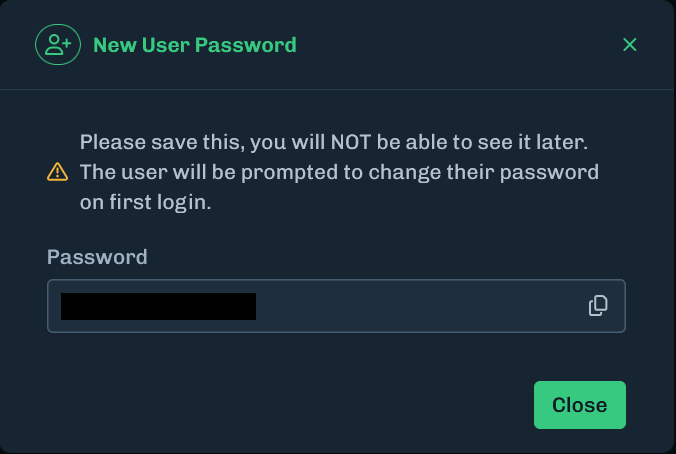
After creating a new user, a password prompt appears displaying a temporary password for the new user.
- New users will be prompted to change their password after initial login.
To Create an Account
- Navigate to Admin > Users.
- Click New.
-
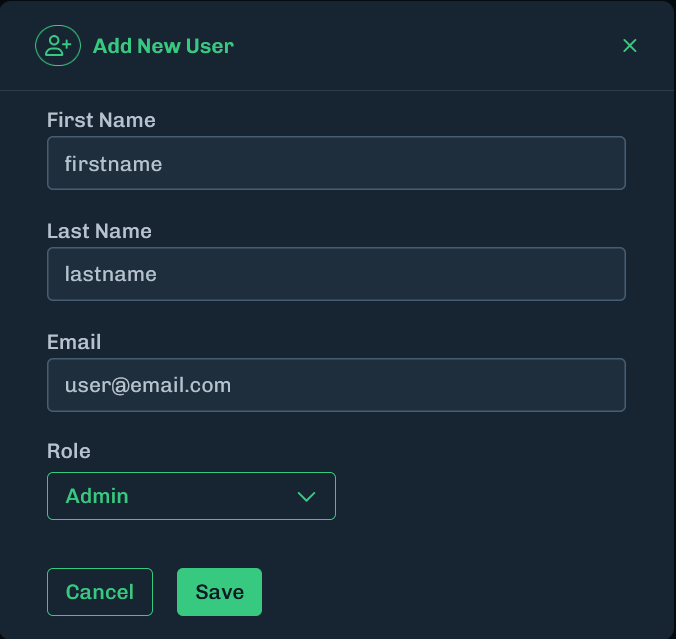
Fill in the user information and select a role.
-
click Save.
-
Copy the displayed temporary password so it can be given to the new user.
- It is important to copy this temporary password as it cannot be accessed again after closing the modal.
- If the password is not saved, you will need to reset the password for the user.
Forgot Password
For airgapped deployments there is a different workflow as compared to a SaaS deployment.
- A HiddenLayer Console administrator will need to reset your password for you.
To Reset a Password
- Navigate to Admin > Users.
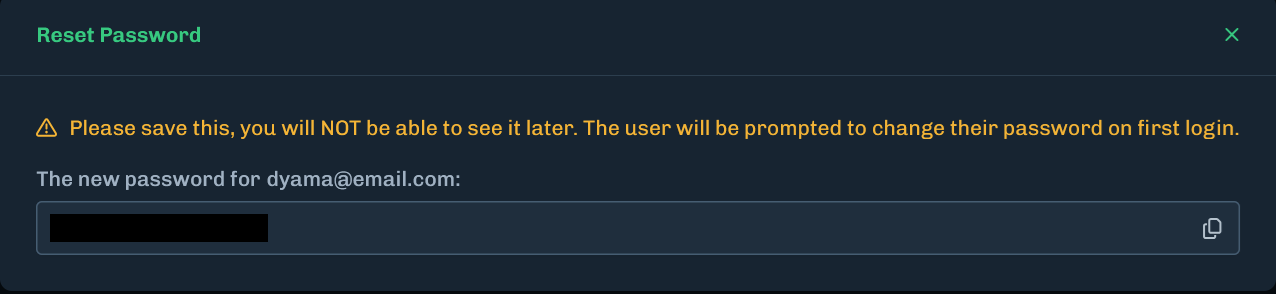
- For the user that requires a password reset, click Actions then Reset Password.
-
Copy the displayed temporary password so it can be given to the new user.
- It is important to copy this temporary password as it cannot be accessed again after closing the modal.
- If the password is not saved, you will need to reset the password for the user.